Quick Start Guide
Welcome to the DotFix NiceProtect Quick Start guide. This tutorial is designed to help you secure your first application in minutes without requiring deep knowledge of reverse engineering or complex configuration.
NiceProtect is designed to work out-of-the-box for most Delphi, Visual Basic, and C++ applications. Follow the workflow below to apply standard protection layers.
Step 1: Open Your Application
Launch DotFix NiceProtect. Use the Open button or drag-and-drop your compiled executable file (EXE, DLL, or OCX) into the main window.
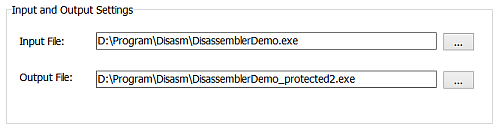
Note: Ensure you are opening the compiled binary, not the source code project file. For the best security results, we recommend protecting the unpacked, original binary generated by your compiler.
Step 2: Configure Basic Protection
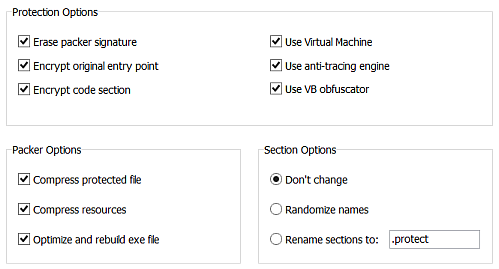
Navigate to the Protection Options tab. Here you will see various security options. For a basic setup, we strongly recommend enabling the following core features:
- Packing: This compresses your executable, reducing its file size and protecting resources (images, strings) from easy extraction.
- Obfuscation: This is critical for Delphi and VB6 applications. It renames internal structures (RTTI, form names, event handlers) to meaningless strings, making the code logic much harder to understand.
- Anti-Tracing: Prevents debuggers from stepping through your code line-by-line.
Step 3: Setup Trial Limitations (Optional)
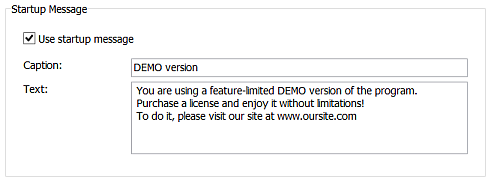
If you are distributing a trial or demo version of your software, you can enable a "Nag Screen" (Startup Message). This forces the user to view a purchase reminder every time they launch the application.
Go to the Custom Messages tab and check Use startup message. You can use the default text or customize it:
"You are currently using the DEMO version of this program.
Functionality is limited. To remove these restrictions,
please purchase a license at www.yoursite.com."
This method is a proven psychological driver for conversion, reminding users that the software is a commercial product.
Step 4: Execute Protection
Once configured, return to the Protection tab and click the Start button.
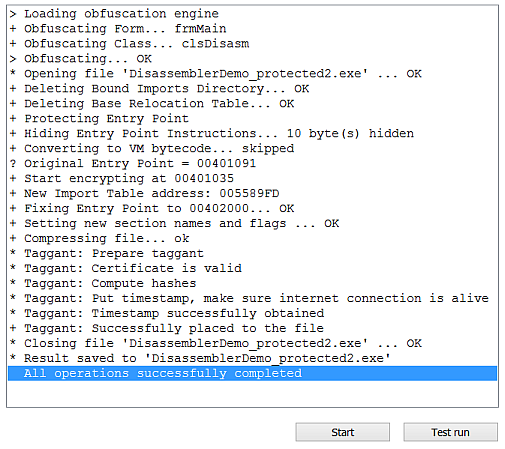
The log window will display the protection process in real-time:
- Analyzing PE header and sections.
- Encrypting code blocks.
- Applying mutations and virtualization.
- Compressing the final binary.
Once finished, a new file (usually named `your_app_protected.exe`) will be created. Test this file to ensure it runs correctly on your system.
Beyond Basic Protection
While the steps above provide a solid security envelope (shell protection), sophisticated attackers may still attempt to dump the process from memory. To achieve professional-grade security, you must move beyond the basics:- Use MAP Files: By generating a MAP file during compilation, you allow NiceProtect to "see" inside your functions and apply virtualization to the algorithm itself, not just the file wrapper.
- Virtualize Critical Logic: Use SDK Markers inside your source code to mark sensitive algorithms (e.g., license checking, proprietary math). Code inside these markers is converted to virtual machine bytecode, which is extremely difficult to reverse engineer.